Automating Data Flow from Source to Spreadsheet using Chains
This guide describes an end-to-end data workflow, which includes extracting data from a source system, transforming it via queries, and delivering the resulting data set to a spreadsheet for reporting purposes.
Implementation Steps:
- Step 1: Validate the Source System (SS) Connection: The first step is to test the connection to your SS environment. Use a Chain to confirm that data can be successfully retrieved.
- Step 2: Create Tables: Based on the structure of the data retrieved from SS, create the corresponding tables in Wdata to store this information.
- Step 3: Build the Data Import Chain: Construct a Chain to automate the data transfer. This Chain will need to perform the following sequence of actions:
- Get the source data from SS: This step retrieves data from the source system using a specific command. For instance, it might be a POST HTTP command, but the exact method will depend on the source system's requirements. Here is the list of Connectors available.
- (Optional) Convert Data Format: If the source data is in a format like JSON, it may need to be converted to CSV. This can be done using the 'Tabular Transformation (JSON - CSV)' command.
- Load data to table: Import the converted CSV file into the tables - For this, we recommend using the Load data to Wdata template.
- Step 4: Verify the Data Load: After executing the Chain, confirm that the tables have been successfully populated with the correct data from SS.
- Step 5: Develop Data Queries: Create queries using the newly populated tables. These queries will allow you to filter, join, and aggregate the data to meet your specific reporting requirements.
- Step 6: Connect Queries to your Spreadsheet: Finally, use the incoming connections feature within your spreadsheet to link to the queries you created. This will push the final, prepared data into your spreadsheet for reporting and analysis.
Here is the Chain image with the commands:

Automate the Data Refresh Process: Once the core data connection is established, you can automate the entire workflow to run on a schedule and pull specific data sets dynamically.
- Implement an Integration Control Sheet (ICS): Create a dedicated spreadsheet to serve as a control panel for your Chain. An ICS is used to pass dynamic input values (e.g., Year, Month, Region) to the Chain. This allows users to retrieve specific data from the Source System simply by updating a cell in a sheet, without ever needing to modify the Chain itself. This article provides a step-by-step guide to creating and configuring an ICS for use in Chains.
- Schedule the Chain for Automatic Execution: Configure the Chain to run on a recurring schedule (e.g., daily, weekly). When the schedule is triggered, the Chain will automatically use the current values in the ICS to retrieve the latest data and load it into the tables, requiring no manual intervention. Refer to this article for instructions on how to schedule a Chain.
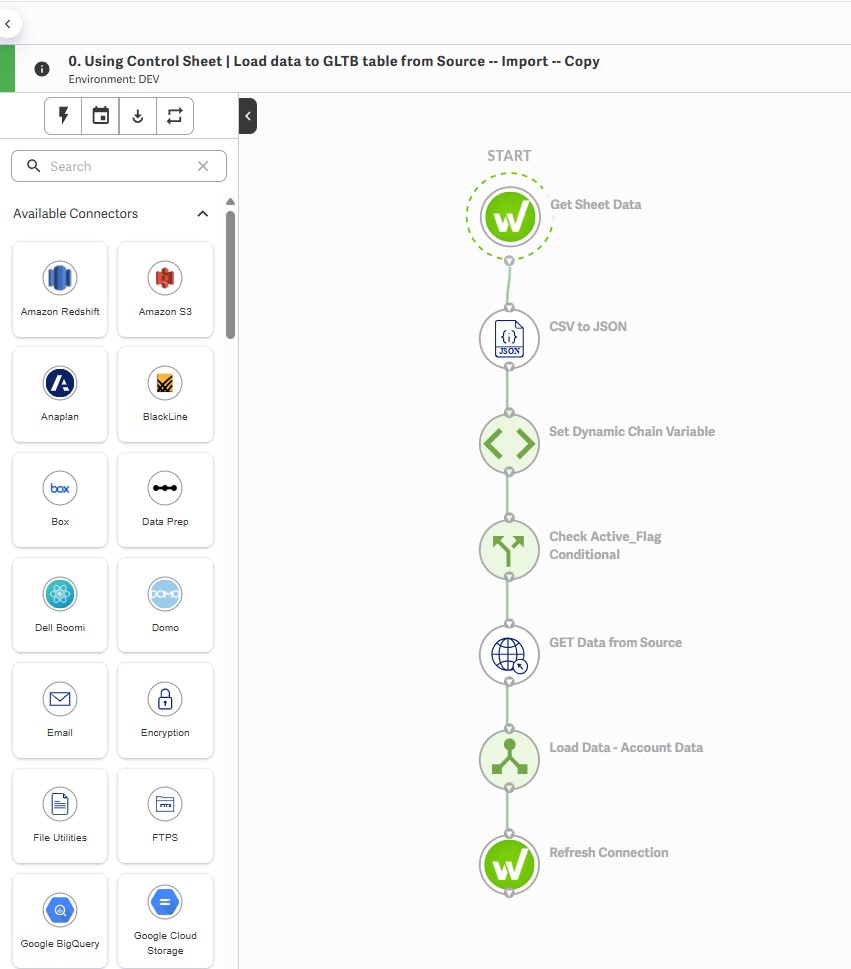
- Convert Data to JSON Format: From the below Chain, the 'CSV to JSON' command is used to reformat the data. This conversion is required to ensure compatibility with the next commands that follows, which mandates a JSON data structure for transmission.
- Store Dynamic Input Variables: The 'Set Dynamic Chain Variables' command captures and store parameters from the Integration Control Sheet (ICS), such as the reporting 'Year'. Storing these as variables allows them to be used dynamically in subsequent commands within the workflow.
- Perform Conditional Execution Check: This command implements a conditional check on the Active_flag value from the Integration Control Sheet (ICS). The workflow will only proceed to the next command if this flag is set to TRUE; otherwise, its execution is halted.
- Automate the Spreadsheet Refresh: To complete the end-to-end automation, add a "Refresh Connection" command at the end of your Data Import Chain. After the Chain successfully loads the updated data into the tables, this command will automatically push the fresh data to your connected spreadsheet. This ensures your reports are always up-to-date without requiring a manual refresh.
Here is the updated Chain to get data from Integration Control Sheet(ICS):
If you have any questions, leave a comment here or email us at start_here@workiva.com
1
Du måste logga in om du vill lämna en kommentar.
Kommentarer
0 kommentarer