Ability to select, edit, name or delete custom colors
SlutförtThe following suggestion was shared by a fellow Workiva customer:
It is not possible to delete a custom color if, for example, were accidentally created or are no longer needed. It would be beneficial to at least remove a custom color, if not edit it, name it or delete it from the list.
If you also would like this feature request, feel free to comment below, vote up the post or share your own awesome idea here.
-
Officiell kommentar

Hi there Workiva Community enthusiasts!
Exciting news! We’ve made it much easier to keep your styling on brand with enhanced management for File Colors, giving you more control and flexibility over your color palette. Users now have the ability to:
- Name colors: Give your colors custom names so you and your team always know exactly what they are for, removing the guesswork and ensuring the right tone is used every time.
- Remove and edit individual colors: Remove and edit individual colors in your File Colors to efficiently keep your color palette aligned with your brand.

Yes, please make this an option! I have 4 custom colors that I use in all of my documents and spreadsheets. They fit very nicely in the custom boxes in the same order all the time. Then, I needed to do some color editing in a single document, which required several variations of the green we always use. Adding these moved all of my normal, custom colors out of place and now those extra greens will likely never be needed again. I'd love to be able to clear them out or, at least, have a row for my normal, custom colors to always live.
1
I agree - please make this an option!
1
I would also very much appreciate this option!
1
I have been struggling to replicate a color we use in our annual report. I thought I had the right color and created a custom color based on the RGB settings I found in another file. Unfortunately it wasn't a match. Unfortunately my second attempt was also unsuccessful. I'm leery of any more attempts to get it right.
0
Hello and welcome to the Community, Dave! Thanks for sharing your insights here. Sorry to hear of your frustration.
We do have some options internally if you are able to send your troublesome file to either your CSM or Customer Support to see if we can find a match and/or convert to CYMK as opposed to RGB.
In the meantime, I am happy to add your request for the ability to identify a customer color in Workiva. Thanks again and chat soon!
0
How has this not been added yet?
0
Hi Michael,
While you can remove or edit a custom color, as of yet this is not available direct in Workiva to identify the color or rename it. Happy to add you as a requestor on our end. Let me know if you have any follow-ups for me.
0
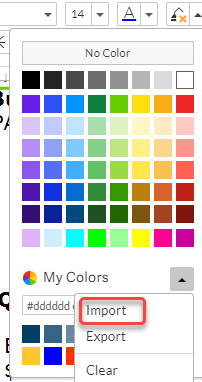
You can use the My Colors dropdown to import a custom color palette.
- On the My Colors dropdown menu, click "Import."
- On the Import Colors popup box, select "Download import colors template."
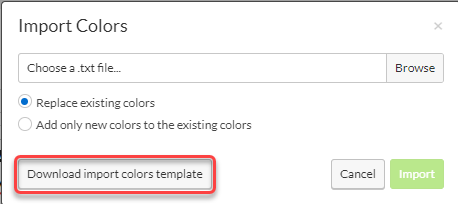
- Set up the template with up to 16 custom colors in the order you prefer.
- Save it as a txt file.
- On the Import Custom Colors popup box, Browse to the txt file and select Open, then click Import.
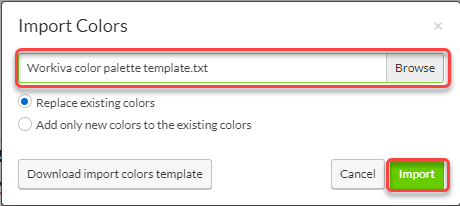
If you already have custom colors set up in the order that you like, you can Export the color template to save for future use. On the My Colors dropdown, choose the “Export” option to download a custom colors template pre-populated with the current colors. Then if your colors ever get changed and you want to revert to your preferred custom color palette, you can re-import this template.
It would still be great to be able to give names to our custom colors!
0
Correct me if I'm wrong but the only way to "remove" a custom color is to add enough custom colors that it forces the one you want gone off the palette? Correct?
We can not select a color and delete it. Or select a color and move it on the palette. Both of these functions would be helpful.Important a color palette is fine. The issue is the limit of 16 colors. Why not more? Why is there a limit?
0
Michael Rivette One way to "remove" a custom color is to add enough custom colors that it forces the one you want gone off the palette, but that is not the only way to remove a custom color. You can also adjust the custom colors by uploading a new custom color template, which will replace the custom colors with any colors you include in your template - in the order that you list them in your template.
0Du måste logga in om du vill lämna en kommentar.
Kommentarer
11 kommentarer