Filing with KVK - Frequently Asked Questions
Filing your annual financial statements with the Dutch Chamber of Commerce (KVK) in iXBRL format can raise many questions — from adding your auditor's report and managing file size, to downloading the correct filing documents, understanding hash codes, and confirming a successful submission — you will find the guidance for each stage of the process.
Building the Document & Managing File Size
How to add an audit report to your financial statements
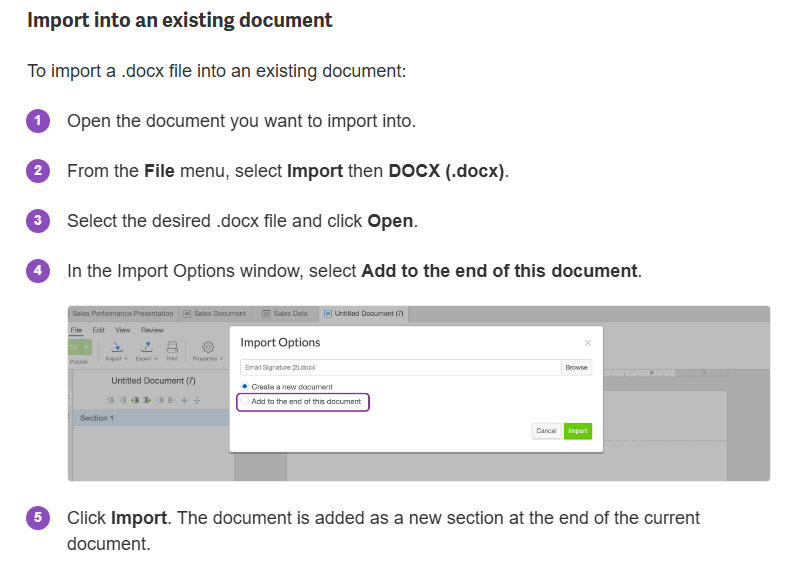
The auditor's report must be included directly within your Annual Report. You can add the report to a new section in the Annual Report document witin the Workiva platform by following our step-by-step guide in the Workiva Support article on how to Create or import a document using the audit report in DOCX format.
Important Note on Signatures:
A digital signature is not currently required for Inline XBRL filings with the KVK. You only need to include the text of the auditor's report within the document itself. Because these rules can change, we highly recommend checking the official KVK website or consulting your auditor for the most up-to-date filing requirements before you submit.
What is the file size limit for KVK submissions
The current maximum file size accepted by the KVK is 32MB. You can always verify the current limits and system updates on the official KVK Statuspagina.
Why is my iXBRL file so large?
When you convert your annual report from a PDF to an iXBRL (xHTML) file, the file size often grows significantly. This happens because xHTML format does not compress images as efficiently as PDF format does.
Quick tips to reduce file size
To shrink your final iXBRL file, reduce the size of your original PDF. You can do this by reducing the total number of images in the report and lowering the quality of the remaining images.
Auditor Review & Formats
What format should the filing documents be in
The filing documents must be in .xbri format, as required by the KVK Reporting Manual.
You do not need to convert anything manually: The .xbri file is the output automatically generated by the Workiva platform.
How to download filing documents
To give your auditor the correct file for review, follow these steps:
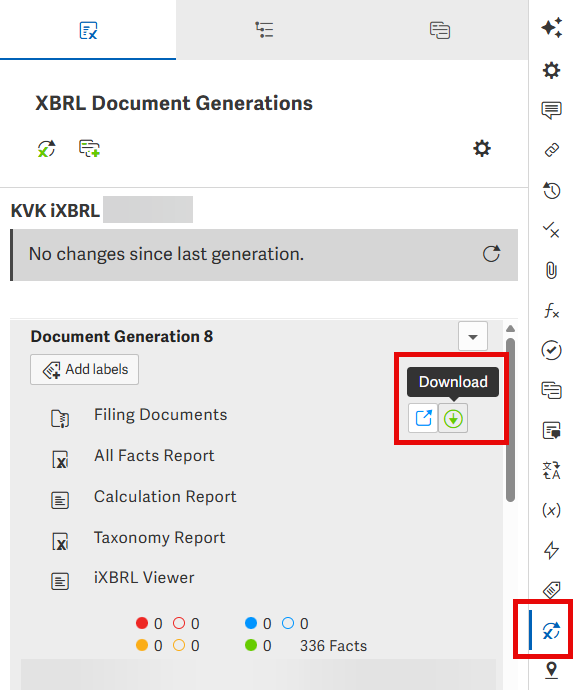
- Go to the XBRL tab and click on your latest XBRL generation.
- Click Download to get the official filing documents. (Do not just save the preview page).
- Share the downloaded .xbri file directly with your auditor.
Can't see the XBRL tab or generations?
- Show XBRL: Ensure the XBRL feature is activated for your project.
- Check your permissions: If you do not see the XBRL tab, you may need a different role. Ask your Workspace Owner to update your account permissions to include the XBRL Manager role.
Workiva Support: Generate XBRL and Manage workspace user role
Hash codes: What they are and what to do with them
A hash code is a unique digital fingerprint used to verify that your financial statements have not been altered after the auditor approves them.
How auditors get the hash code
Your auditor is responsible for generating the hash code. They do this by uploading the final report package into the official NBA Report Package Hash Generator, which they can download directly from the website of the Koninklijke Nederlandse Beroepsorganisatie van Accountants (NBA).
What you should do with the auditor's report
Once the auditor generates the hash code and issues their official report, you should:
- Keep them together: Ensure the generated hash code stays attached to the specific version of the financial statements the auditor reviewed.
- Do not edit the file: Even changing a single character or space in your document will break the hash code, making it invalid for your KVK submission.
- Submit: Follow the standard process to upload the final, verified file to the KVK.
Filing & Confirmation
Do I need a Digipoort certificate to file
No, you do not need your own Digipoort certificate to file with the KVK. Workiva allows you to file directly through the platform.
Depending on whether your company has its own certificate or not, you need to select the correct setting during the information collection step in Workiva:
- If you DO NOT have a Digipoort certificate: For the field Rol Belanghebbende (Role Stakeholder), select Intermediair (Intermediary).
- If you DO have your own Digipoort certificate: Select Ondernemer (Entrepreneur). You will then need to paste your Base64 encoded certificate into the Client Certificate field and provide your certificate password during the Test and Live File steps.
For more filing information, refer to the Workiva Support Article linked below.
Workiva Support: KVK Direct E-File
Can I rename or move my filing in Workiva
Yes. You can safely rename your filing or move it to a different folder in Workiva at any time. Doing this will not impact your created filing, its tagged documents, or your ability to submit to the KVK.
How do I know my filing was successful
You will receive an automated confirmation email from edgarsubmit@workiva.com as soon as your filing is successfully submitted through the Workiva platform.
How to check your filing on the KVK website
If you file digitally via SBR, your documents should be available in the Dutch Business Register immediately. You can verify that the KVK has processed your filing for free by following these steps:
- Go to the webpage provided by the KVK for checking your financial statements.
- Scroll down and click the button that says Check it now (in Dutch). This will open a search screen.
- Type in your KVK number or your company name and press Enter.
- Look for the section labeled Jaarrekeningen (Financial Statements).
If the current financial year is visible on that list, your filing has been successfully received and processed by the KVK.
Note: The search screen and results page are only available in Dutch, but you do not need to log in or buy any products just to verify that your file has arrived.
What to do if your filing is not accepted
If the KVK system rejects your filing, it could be due to a temporary system disruption or a file error. Try these two steps:
1. Check for KVK system outages: Before changing anything in your document, check if the KVK platform itself is experiencing technical issues or planned maintenance. You can view the live system status on the KVK Statuspagina.
2. Review the rejection error message: If all KVK systems are running normally, look closely at the error message or rejection receipt provided in your workspace to determine a resolution. To escalate any filing related issues, please contact your Customer Success Manager or Workiva’s 24/7 Support line.
Please sign in to leave a comment.
Comments
0 comments