Workiva supports a direct filing capability with the Netherlands Chamber of Commerce (KVK). This allows organizations to create reports for NL entities of any size and directly file these reports with the KVK without needing to export or use a 3rd party tool.
To create a KVK filing, you must be a Financial Reporting for Multi-Entities (MER) customer, or have another solution with the Local Taxonomies & Filing Access add-on. To submit a KVK filing, you must have the KVK Filing role, independent of having the solution or add-on.
Filing your Documents
To create a new filing, click Create and select Filing. Enter details for your filing, such as a name, the folder where the filing should be created, and required dates. Select NL KVK as the filing type and click Create Filing.
Next, on the Collect step, add the relevant documents or filing package to your filing. Click Add Documents to open the folder where the filing should be created. You can now select the document to file, along with any supporting documentation needed, then click Add to continue. Ensure the items you are adding are all included in the same XBRL profile.
Select the files you added and click Generate Files to validate the XBRL tagging. If you need to add or remove files, you can do so from the banner in the upper right.
If there are issues with the generations, you should open the affected document and use the validation errors to assist in resolving any issues. Review the Generate and review XBRL section in the Netherlands XBRL Overview for more information. After successfully generating your documents, click Next to continue.
Fill in the specific filing information. You can hover over the ? icons for information about each field. Filers should choose Jaarrekening_ixbrl_esd in the Berichtsoort field.
For your convenience, some Dutch labels have been translated into English in the table below. After entering all information, click Next to proceed.
| Dutch Label | English Translation |
| Berichtsoort | Message Type |
| Jaarrekening_ixbrl_esd | Inline report of Annual Accounts |
| Omzetbelasting | Sales Tax |
| Rol Belanghebbende | Role Stakeholder |
| Intermediair | Intermediary |
| Ondernemer | Entrepreneur |
Note: If your company does not have their own valid Digipoort certificate, you should select the “Intermediair” option for "Rol Belanghebbende". Otherwise select the “Ondernemer” option and paste the Base64 encoded certificate into the Client Certificate field. You will need to enter the certificate password in the Test and Live File steps.
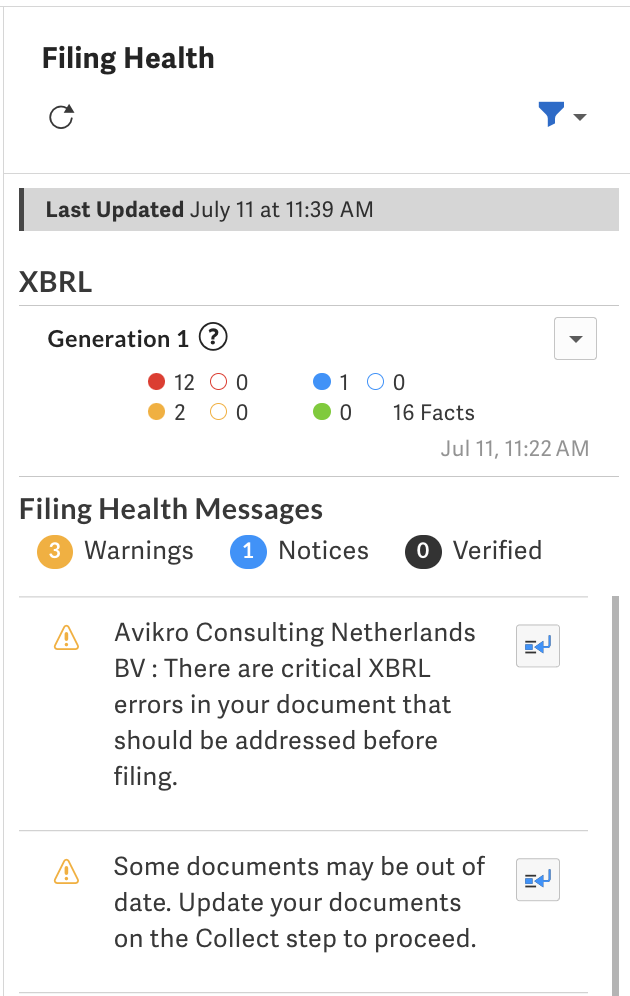
All documents should now be generated and validated, with all necessary information collected. Review the summary page and Filing Health panel to ensure all information is correct and that there are no remaining issues before filing. You can jump directly from issues in Filing Health to the location of the issue in the associated document, if one exists.
You should now Test File to ensure there are no issues submitting your filing. After successfully test filing, you are ready to Live File.