Classic file types are no longer available for use as of January 2021. You can transition your classic files or download a PDF. Learn More
Workiva Support Center
File Utilities commands
File Utilities commands
Last updated on
To access and work with files on Microsoft Windows® and Linux®-based operating systems as part of a chain, add a step with a File Utilities connection command.
Base64 encoding takes binary data (like images, documents, or other files) and converts it into a string of ASCII characters. By representing binary data as text, Base64 encoding helps prevent data loss or corruption during transmission over media that are not designed to handle binary formats.
Note: Base64 encoding causes an overhead of 33–37% relative to the size of the original binary data (33% by the encoding itself and up to 4% more by the inserted line breaks).
Properties
Property
Detail
Name
Enter the name to be shown for the node
Description
Optional: Enter the description of the node. Best practice is to describe why this node is in the chain (what is its purpose).
Command Properties
Connection to use
Select the connection that is the source for the encode/decode.
Runner
Select the type of runner to be used
Source file
Enter the name of the file to encode.
Encode with padding
Select this to include padding when encoding the file.
Outputs
Output
Output Type
Base-64 encoded text file
Text file
Exit codes
Code
Type
Detail
0
Success
Success
1
Error
The command failed
Base 64 decode
Base64 decoding converts ASCII strings back into the original binary data. This allows you to access and use the original data after it has been encoded for transport or storage.
Properties
Property
Detail
Name
Enter the name to be shown for the node
Description
Optional: Enter the description of the node. Best practice is to describe why this node is in the chain (what is its purpose).
Command Properties
Connection to use
Select the connection that is the source for the encode/decode.
Runner
Select the type of runner to be used
Source file
Enter the name of the file to decode.
Source encoded with padding
Select this to indicate that the file to be decoded had padding added when it was encoded.
Outputs
Output
Output Type
Binary file
Binary data
Exit codes
Code
Type
Detail
0
Success
Success
1
Error
The command failed
Checksum
To verify a file has not been corrupted or changed from its original source, use a Checksum command. The command can be run on multiple files, and their returned hash values can be compared to determine whether those files are identical.
Properties
Property
Detail
Input file
Enter the name of the file to check. To match multiple files, use wildcard characters * or ?.
Checksum type
Select the checksum type to run on the input file.
Options:
SHA-256
SHA-512
CRC32
Outputs
Output
Output Type
Checksum hash value
String
Exit codes
Code
Type
Detail
0
Success
Success
1
Error
The command failed
Clean line breaks
To remove extra line breaks from a tabular file's cells, such as within an output from one system to upload to another, use a Clean Line Breaks command.
Properties
Property
Detail
Source file
Enter the tabular file with the broken lines to clean.
Delimiter
Select the delimiter used in Source file.
Outputs
Output
Output Type
Cleaned file
File
Exit codes
Code
Type
Detail
0
Success
Success
1
Error
The command failed
Copy
To copy files and directories, use a Copy command.
Properties
Property
Detail
Source
Enter the name of the files or directories to move. To match multiple files or directories, use the wildcard characters * or ?.
Destination
Enter the new location of the file or directory.
Overwrite
To overwrite existing files, check this box.
Outputs
None
Exit codes
Code
Type
Detail
0
Success
Success
1
Error
Invalid arguments
14
Error
Source file not found
15
Error
Failed to write the destination file
16
Error
Couldn't write the destination file because another file has the same name
Create file
To create a new file, use a Create File command.
Properties
Property
Detail
Text
Enter the text to add to the file.
File path
Enter the path to where to create the file. Optional if using the file as an output for another command in the chain.
Overwrite
To overwrite another file that exists at the file path, check this box.
Outputs
Output
Output Type
Created file
File
Exit codes
Code
Type
Detail
0
Success
Success
1
Error
Invalid arguments
15
Error
Invalid destination
16
Error
Couldn't write the destination file because another file has the same name
Delete
To delete files or directories, use a Delete command.
Properties
Property
Detail
File name
Enter the name of the files or directories to delete. To match multiple files or directories, use the wildcard characters * or ?.
Outputs
None
Exit Codes
Code
Type
Detail
0
Success
Success
1
Error
Invalid arguments
14
Error
Found no files to delete
17
Error
Failed to delete the specified files
Delete directory
To delete one or more directories, use a Delete directory command.
Properties
Property
Detail
Path
Enter the name of the directories to delete. To match multiple directories, use the wildcard characters * or ?.
Recursive
To recursively delete files or folders in the directory, check this box.
Outputs
None
Exit codes
Code
Type
Detail
0
Success
Success
17
Error
Failed to delete the specified directory
Find
To search for a text string in a file or set of files, use a Find command.
Properties
Property
Detail
Files
Enter the file or set of files to search.
Pattern
Enter the text string to find.
Pattern syntax
Select whether to use an exact match or regular expression (regex) syntax for the pattern.
Case sensitive
To consider the case of the characters when searching for the pattern, check this box.
Inverse
To find all lines that don't match the pattern, check this box.
Outputs
Output
Output Type
File Results
File
Results Line Count
Integer
Exit codes
Code
Type
Detail
0
Success
Success
1
Error
Invalid arguments
2
Error
Task failed
14
Error
File not found
18
Error
Pattern not found
Find and replace
To perform a find-and-replace in a file, use a Find and Replace command.
Properties
Property
Detail
Source
Enter the name of the file to search.
Destination
Specify whether to output the original file or a copy:
To output the original file with its updated column values, enter the same file as Source.
To output a copy of the original with the updated column values, enter the name of the new file.
Overwrite
To overwrite an existing destination file, check this box.
Find
Enter the text string to find.
Replace
Enter the text string to insert at the matched locations.
Find syntax
Select whether to use exact match or regular expression (regex) syntax for Find.
Case sensitive
To consider the case of the characters when searching for the Find pattern, check this box.
Outputs
Output
Output Type
Replaced result
File
Exit codes
Code
Type
Detail
0
Success
Success
1
Error
Invalid arguments
2
Error
Task failed
14
Error
File not found
15
Error
Invalid destination
16
Error
Overwrite error
18
Error
Pattern not found
Get file
To retrieve a file from the local file system, use a Get File command.
Properties
Property
Detail
Input file
Enter the file to retrieve and create as an output.
Data type
Select the content type of Input File.
Outputs
Output
Output Type
File info
JSON
File
File
Exit codes
Code
Type
Detail
0
Success
Success
1
Error
File wasn't found
Get file/folder info
To retrieve the file system information for a file or folder, use a Get File/Folder Info command.
Properties
Property
Detail
File/folder
Enter the file or folder to retrieve information about.
To compress a file using gzip, use a Gzip File command.
Properties
Property
Detail
Input file
Enter the file to compress.
Outputs
Output
Output Type
Gzipped file
File
Exit codes
Code
Type
Detail
0
Success
Success
1
Error
The command failed
List directory
To list the contents of a directory, use a List Directory command.
Properties
Property
Detail
Path
Enter the path of the directory to list.
Output format
Select the format of the output. To include the header and summary information, select Full.
Outputs
Output
Output Type
Found files list
Array
Result file
CSV
Note: The Found files list output is limited to 500 items; for larger operations, the Result file output should be used instead.
Exit codes
Code
Type
Detail
0
Success
Success
1
Error
Invalid arguments
14
Error
Directory not found
List file content
To list the contents of a file, use a List File Content command.
Note: This command can't return individual lines larger than 64KB.
Properties
Property
Detail
File name
Enter the name of the file to inspect.
Preview lines
For large files, enter how many of the file's lines to preview. You can set the starting line for the preview using the Offset field just below this one.
The line number to start the preview at. This is 0 based, so to print from the beginning of the file use the value 0.
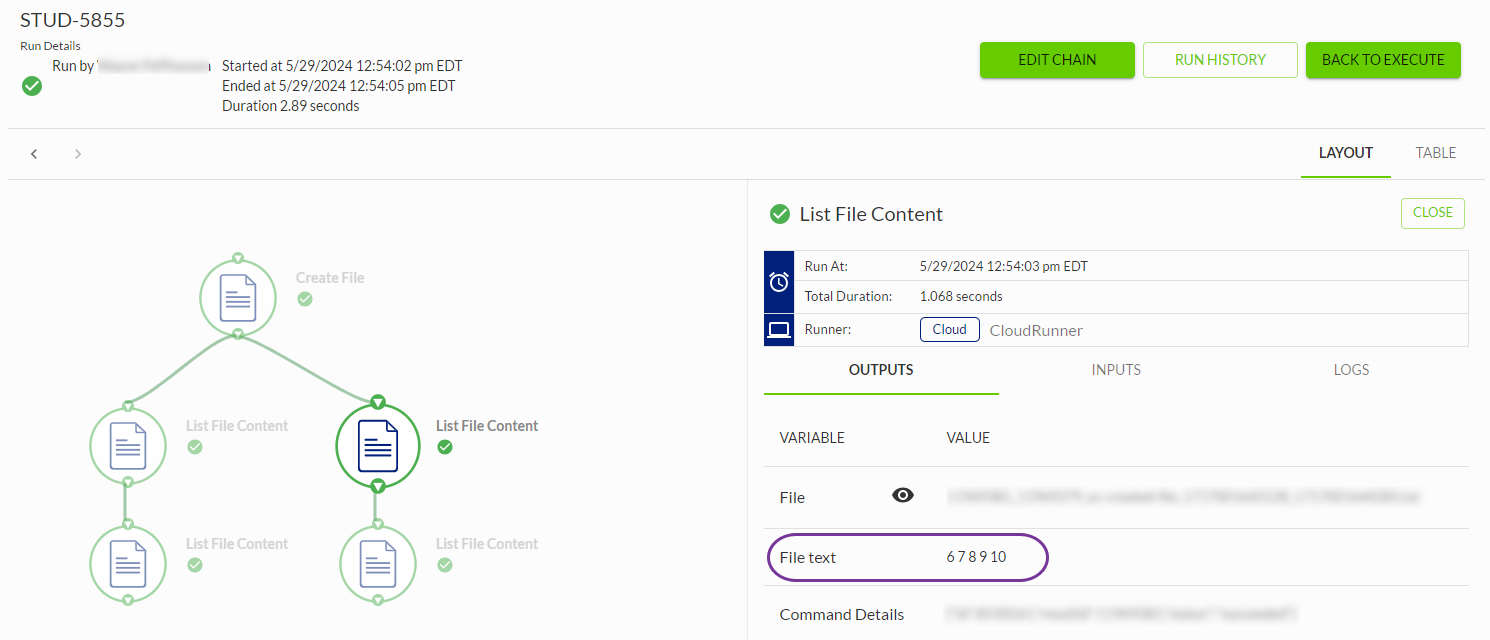
Example
The following image shows 5 preview lines with an offset of 5. Please note that because the offset starts at 0, the first line shown is actually 6.
Outputs
Output
Output Type
File
File
File text
String
Exit codes
Code
Type
Detail
0
Success
Success
1
Error
Invalid arguments
14
Error
File not found
20
Warning
File is too large or not human-readable
Make directory
To create a directory, use a Make Directory command.
Properties
Property
Detail
Directory
Enter the name of the directory to create.
Outputs
None
Exit codes
Code
Type
Detail
0
Success
Success
1
Error
Invalid arguments
15
Error
Failed to create directory
16
Warning
Remote directory already exists
Move
To move files or directories, use a Move command.
Properties
Property
Detail
Source
Enter the name of the files or directories to move. To match multiple files or directories, use wildcard characters * or ?.
Destination
Enter the new location for the file or directory.
Overwrite
To overwrite existing files, check this box.
Outputs
None
Exit codes
Code
Type
Detail
0
Success
Success
1
Error
Invalid arguments
2
Error
Task failed
14
Error
Source file not found
Select Lines
To retain a specific number of lines from the start or end of a file, use a Select Lines command. This is basically the opposite of the Strip Lines command. Instead of removing lines specified by the pattern, it keeps the lines. As with Strip Lines, the sections can be anywhere in the file.
Properties
Property
Detail
Source file
Enter the file to retain lines from.
Lines to select
Enter a list of the lines to extract, as individual lines or ranges. For example, a range of 3:10 removes lines 3 through 10 from the file. Negative numbers can be used to specify ranges from the end of the file. For example: :-6 will select all lines up to and including the 6th-to-last line.
Outputs
Output
Output Type
Output file for this command
File
Count of lines kept
Integer
Count of lines removed
Integer
Exit codes
Code
Type
Detail
0
Success
Success
1
Error
General failure
Split file
To split a file into multiple file chunks based on byte size, line count, or regular expression (RegExp) delimiter, use a Split File command. For example, use this command to process smaller files in parallel to help improve performance
Properties
Property
Detail
Input file
Enter the file to split into multiple chunks.
Split type
Select how to split the input file—by Byte, Line, or RegExp
Value
Enter the value to split the input file by, based on Split type:
If Byte, enter the maximum file size of the file chunks.
If Line, enter the maximum number of lines to include in a file chunk.
If RegExp, enter the regular expression for the line that indicates when to create a new chunk.
Include RegExp match
If Split type is RegExp, select whether to include the line that matches Value in the chunk it generates.
Outputs
Output
Output Type
Split file chunks
File
Number of files
Integer
Exit codes
Code
Type
Detail
0
Success
Success
1
Error
Invalid arguments
Stack files
To stack multiple asymmetric files on top of one another, use a Stack Files command.
Note: With the Tabular Transformation connector, you can use a Stack Files command to stack symmetric files that all have the same number of columns.
Properties
Property
Detail
Input files
Enter the files to stack.
Outputs
Output
Output Type
Stacked file
File
Exit codes
Code
Type
Detail
0
Success
Success
1
Error
Invalid arguments
Strip lines
To remove lines from a file according to the line numbers provided, use a Strip Lines command. This is basically the opposite of the Select Lines command. Instead of keeping the lines specified by the pattern, it removes them. As with Select Lines, the sections can be anywhere in the file.
Properties
Property
Detail
Source file
Enter the file to strip lines from.
Lines to strip
Enter a list of the lines to strip, as individual lines or ranges. For example, a range of 3:10 removes lines 3 through 10 from the file. Negative numbers can be used to specify ranges from the end of the file. For example: :-6 will remove all lines up to and including the 6th-to-last line.
Outputs
Output
Output Type
Output file for the Strip lines command
File
Count of lines kept
Integer
Count of lines removed
Integer
Exit codes
Code
Type
Detail
0
Success
Success
1
Error
Invalid arguments
2
Error
General failure
Tar
To create a tape archive (TAR) file, use a Tar command.
Properties
Property
Detail
Archive name
Enter the name of the TAR file to create.
Source files
Enter the name of the files or directories to add to the TAR file. To specify multiple files or directories, use commas or wildcard characters.
Overwrite
To overwrite an existing TAR file, check this box.
Outputs
Output
Output Type
TAR Archive
File
Exit codes
Code
Type
Detail
0
Success
Success
1
Error
Invalid arguments
16
Error
Failed to create archive
Template File
This command replaces the specified keys with their respective values from the input file template. These values can be strings or files. If the value is a file, its entire contents will replace the specified value.
Difference from the Handlebars command:Handlebars supports only raw string values for replacement, and has a maximum total variable (i.e. all replacement values) size of 250MB. Template File supports both raw string values and referenced file contents, and does not have a maximum total variable size.
Properties
Property
Detail
Name
Enter the name to be shown for the node.
Description
Optional: Enter the description of the node. Best practice is to describe why this node is in the chain (what is its purpose).
Command Properties
Connection to use
Select the connection that is the source for the template.
Runner
Select the type of runner to be used
Property
Detail
Template
Enter the name of the template file whose keys are to be extracted. This can be in any text format (ASCII, UTF-8, etc.).
Template keys
Select to add information about the values to be replaced.
More than one string or file reference can be included in the command.
Key
The value to be replaced in the template file. This can be either:
A string to be used as a replacement key value.
The filename of a file available to the runner. This file must already be present in the file system (for example, generated by a previous command). This file can be in any format or encoding, and has no defined maximum size. However, larger files may impose a performance penalty.
Value
The replacement content to be used. There is no predefined format in the command for identifying the content to be imported from the template file. Identification is made as part of the command creation. However, best practice is to set off the content to be used with a unique set of characters, such as {content}, **content**, or <content>.
Value type
The type of value that the key is being replaced by (a string or a file).
Outputs
Output
Output Type
Templated file
Text File
Exit codes
Code
Type
Detail
0
Success
Success
1
Error
The command failed
UTF-8 encode
To convert a file to be encoded in Unicode Transformation Format–8-bit (UTF-8), use a UTF-8 Encode command.
Properties
Property
Detail
Source file
Enter the name of the files or directories to move. To match multiple files or directories, use wildcard characters * or ?.
Source encoding
Enter the encoding of Source File, such as uft-16 or windows-1251.
Outputs
Output
Output Type
UTF-8 file
File
Exit codes
Code
Type
Detail
0
Success
Success
1
Error
Invalid arguments
2
Error
Command failed
Untar
To unpack a TAR file, use an Untar command.
Properties
Property
Detail
Archive
Enter the name of the TAR file to unpack.
Destination
Enter the name of the directory to unpack the archive to.
Overwrite
To overwrite existing files when unpacking the archive, check this box.
Outputs
None
Exit codes
Code
Type
Detail
0
Success
Success
1
Error
Invalid arguments
2
Error
Failed to unpack archive
14
Error
Archive not found
16
Error
Overwrite error
Unzip
To unpack a ZIP or GZIP archive, use an Unzip command.
Note: This command requires a GroundRunner.
Properties
Property
Detail
Archive
Enter the name of the archive to unpack.
Destination
Enter the name of the directory to unpack the archive to.
Overwrite
To overwrite existing files when unpacking the archive, check this box.
Outputs
None
Exit codes
Code
Type
Detail
0
Success
Success
1
Error
Invalid arguments
2
Error
Failed to unpack archive
14
Error
Archive not found
16
Error
Overwrite error
Zip
To create a ZIP, GZIP, or GZIP+TAR archive, use a Zip command.
Properties
Property
Detail
Archive name
Enter the name of the archive to create. The file extension determines the compression algorithm:
For ZIP, .zip or .z
For GZIP, .gzip or .gz
For GZIP+TAR, .tgz
Destination
Enter the name of the directory to unpack the archive to.
Overwrite
To overwrite an existing archive, check this box.
Outputs
Output
Output Type
Zipped file
File
Exit codes
Code
Type
Detail
0
Success
Success
1
Error
Invalid arguments
16
Error
Failed to create archive
To access and work with files on Microsoft Windows® and Linux®-based operating systems as part of a chain, add a step...