Detailed link report
已回答Hi,
in Workiva we used links to connect our tables with our source spreadsheet.
Now we would like to check our links.
In our former DMS we were able to export a report which showed us every link in the report. (Including name/value, source, destination)
So, we were able to filter certain links and check every connection
If I open the link report in Workiva I only see how many links have been used in one table but not which links.
Is there another report with more details?
Kind regards
Markus
-
正式评论
 Workiva does have reporting tools that go beyond the basic link count, though they work differently from what you may have had in your previous DMS.You can run a Linked Files Report on a folder, project, or individual file. It shows:
- Source files — where link values originate
- Destination files — files that receive those values
- Sources / Occurrences — total links, unique sources, and how many times each source is usedTo create one:
1. Right-click a folder, project, or file in Files or Home
2. Select Linked Files Report
3. Click Create Link Report → then Open Report once it completesYou’ll also receive a confirmation email with a link to the report.Export Options
From the report you can:
- Export File List (.csv) — includes file names, types, link category (Inside/Outside/Dependent), Document IDs, and file URLs
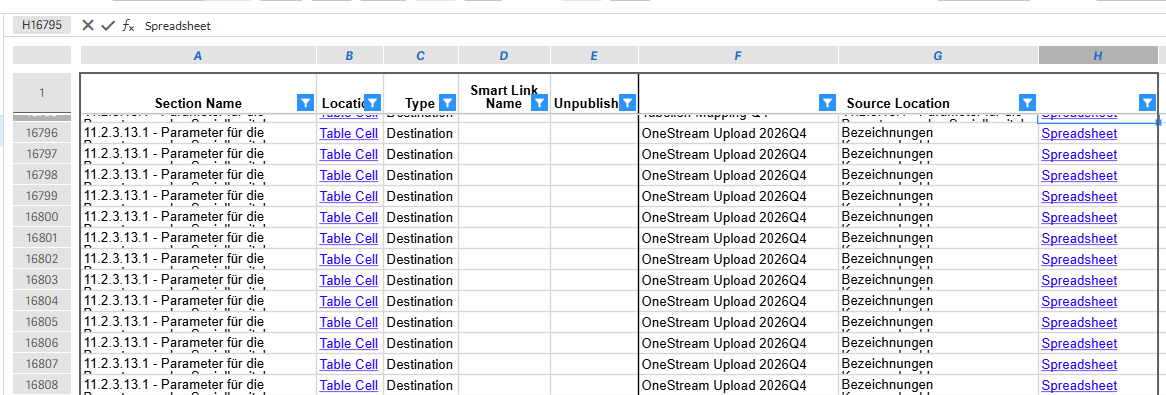
- Create Spreadsheet of File Links — hover over a file in the report and select this option to get a full listing of all links within that specific file (source & destination detail)
Hi Isabel,
Thanks a lot.
I already had a look at this report. With the links we can directly jump into our spreadsheets.
To check all our links, it would be great if there were two additional columns "Cell value" and "Cell destination" (A1, A2....) for the Source location.
With these two extra columns we would be able to cross-check our tables.
Kind regards
Markus
 0
0请先登录再写评论。
评论
2 条评论