SEC Image Requirements and Resolving Validation Errors
Hello filers!
We've been seen a rise in some issues related to images in filings. To help you stay ahead of these, and resolve them quickly, we wanted to provide some tips for you below. But first, here's the details.
SEC Image Requirements
All images filed with EDGAR must be in GIF or JPEG format. However, while EDGAR HTML document’s images are not actually validated, documents containing iXBRL have additional image format requirements. XBRL filings with non-compliant images will be suspended with errors that can be pesky to resolve.
Avoiding XBRL Issues When Adding Images to Documents
When adding new images into an SEC filing, it is important to make sure the image is in either .gif or .jpg format. If you do try to insert an image that is not one of these two format types, you will be prompted with the following warning letting you know that the image type you are trying to insert is not supported for SEC filings:

Clicking Insert will ignore this warning and insert the image anyway (which will result in an SEC Critical Validation Error if the document contains XBRL). Clicking Cancel will not insert the image and you can then reformat the image to be in a supported format and then insert that supported image into the document.
How to Resolve Validation Errors
Here are some tips and tricks to help work out those errors quickly so you can submit your filing!
First, here is an example of a common XBRL image error:
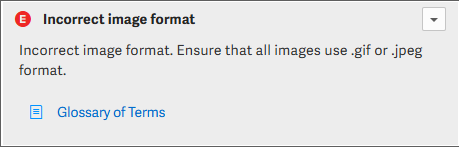
Many of these errors are caused by metadata contained in JPEG files but may also be due to the image not being GIF or JPEG format, despite the filename extension.
If your filing has these errors, the first step is to locate the image that is causing the error. This can be done by clicking the hyperlink included within the validation message to navigate to the location in the document that contains the incorrectly formatted image.
After you locate the image, there are several ways to address the problem:
- Ensure that the image is truly either in GIF or JPEG format. An easy way to check this is to open the image in Notepad and look at the first few characters. GIF files will start with “GIF”, JPEG files will start with unusual characters such as “ÿØÿá”, and PNG files start with “PNG”. XBRL validation may also indicate “Image files must be GIF or JPG format”.
If the image is actually a PNG or other unsupported format, you can use Paint or other image processing software to convert it to GIF (best for logos, charts, and images with few colors) or JPEG (best for large, colorful images) formats. Converting the images may reduce the quality of the image, so ensure that you are satisfied with the output image.
- For JPEG images that still fail with XBRL graphicFileContent validation errors, removing image metadata will often resolve the issue. In Windows, right click on the image, select Properties, then go to the Details tab. Click the Remove Properties and Personal Information link at the bottom of the dialog, then in the Remove Properties dialog, select Remove the following properties from this file, click Select All, and finally click OK.
After removing the properties, locate the image in the document, remove it, and replace it with the modified image.
- For a large number of images or where removing the properties doesn’t work, the free ExifTool utility is available for many operating systems. To use this, create a new folder and copy the ExifTool executable and all of the images into it. Create a new text file in Notepad and paste the following line:
"exiftool(-k).exe" -xmp:all= -all:all= -icc_profile= -overwrite_original *.jpg
Save the file into that folder, named unxmp.bat and double click unxmp.bat to start the metadata removal process. Removing metadata from images will generally not affect their appearance, but verify that all of the images look as expected. Find and replace all of the affected images in the document with the images in this folder.
- If none of these methods are able to resolve the graphicFileContent issue, another option is to resave the image, using Paint or other image software, to a new JPEG. This will reduce the image quality so only should be done as a last resort.
Hope these tips help! If you have any questions, please comment below or reach out to Workiva Support. Happy filing!
U moet u aanmelden om een opmerking te plaatsen.
Opmerkingen
0 opmerkingen