Using if/then for images
We have a document that we would like to use if/then statement to show an image depending on whether or not a criteria is met. So if the criteria is met we would like to show yes/no with a circle around yes and if the criteria is not met i would like to show yes/no with a circle around no. I can do this in excel using images but not sure I can do that in wdesk.
-

Hi Jenniffer!
Great question. I did some testing to see how you to best achieve this in a Spreadsheet, and have a something that might work for you.
Sadly, while you can insert an image into a Spreadsheet cell, if you reference the cell with the image, the IF statement doesn't seem to pull the image in.
As a workaround, I was able to instead insert an emoji of a green circle 🟢 and a red circle 🔴 . Next I created a Data Validation in my Spreadsheet cells for the list of Y and N. And then I created an IF statement to look at cells and if a Y was present, to choose the green circle cell, and the red circle cell for N.
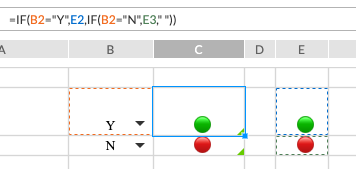
To access the emoji picker on a Windows machine, in a text area use the keyboard stroke Windows button + period (.) or Windows button + semicolon (;). On a Mac (which is what I drive) its Control + ⌘ + Space bar. Any emoji symbol could work and should be recognized by your browser.
Additionally, you could insert a Symbol from the Insert > Symbol option and then use Conditional Formatting to color it if the value in the cell is Y or N.
Hopefully that is of some help. Let me know what questions you have, or if you need anything else. Thanks again and have an awesome day!
0댓글을 남기려면 로그인하세요.
댓글
댓글 1개