How to fix garbled text for XLXS/CSV export for Chinese, Japanese and Korean fonts
Summary of issue:
Occasionally, when a user exports a file from Workiva in .xlsx or .csv format, some text—particularly characters from CJK (Chinese, Japanese, and Korean) languages—may appear garbled or unreadable in Excel. This isn't a bug with Workiva, but rather an issue with how Excel handles the file's encoding. Workiva exports files using UTF-8, a universal character encoding standard, but some versions of Excel may not automatically recognize it, causing the display issue.
Solution: Using the Text Import Wizard
To properly display the text, you can use Excel's Text Import Wizard to manually set the file's character encoding to UTF-8. Follow these steps:
1. Open a new Excel worksheet, select the Data tab, and then click on "From Text" in the "Get External Data" group.

2. A window will pop up asking you to select the file. Choose the .csv or .txt file you exported from Workiva and click Import.
3. The Text Import Wizard dialog window will expand. Please select "Delimited", then select "File Origin" and click on "65001: Unicode (UTF-8)". Then press "Next".
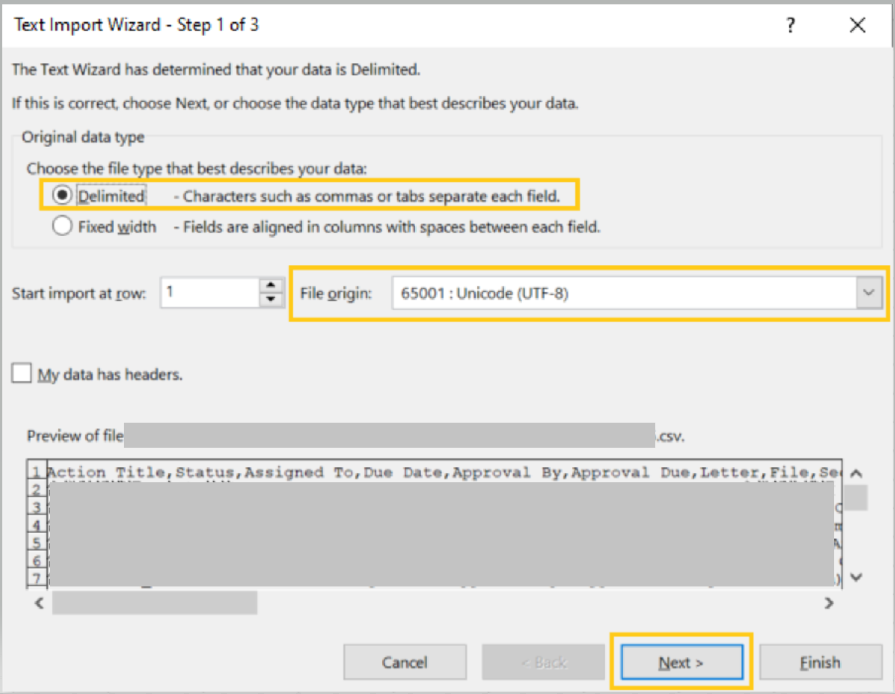
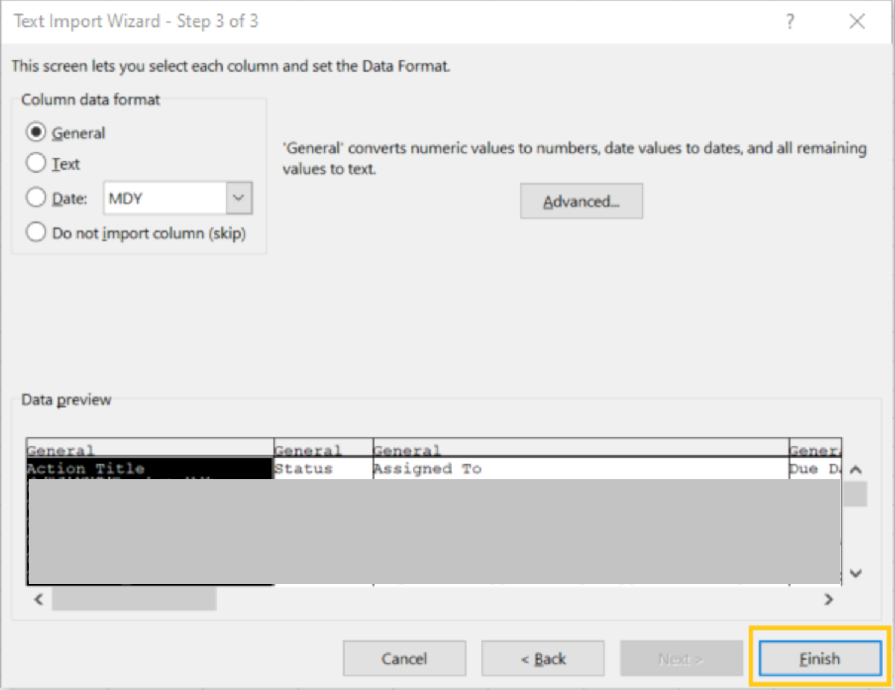
4. Click on the "Tab" and "Comma" options in "Delimited". You can also view the data preview box. Press "Next" and then "Finish".

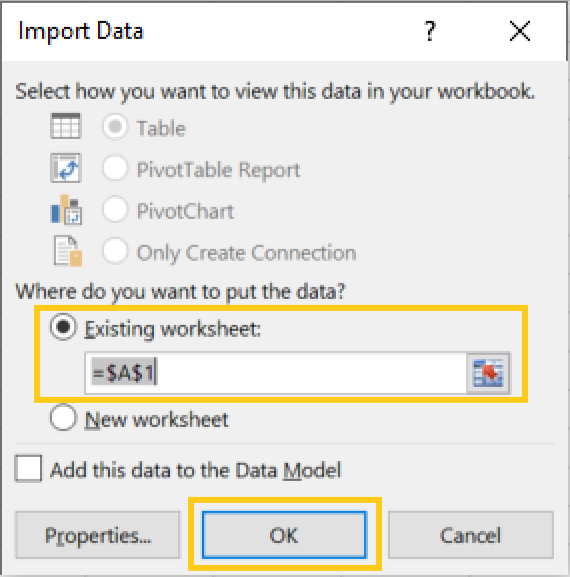
5. It will display a window asking if you want to place the data in the current or new worksheet. You can select A1 here and then press "OK".
The data should now be imported and displayed correctly in your Excel sheet. The text that was previously garbled will now be fully readable!
Accedi per aggiungere un commento.
Commenti
0 commenti